Wednesday, April 13, 2016

SCAL4 Regular: Creating your own custom ScanNCut Mat

When you start a new project in SCAL the mat size is a full 12x12 inch sized mat.  Unfortunately the true area available to us on the Scan N cut mat is not quite 12 x 12.  The true size (as stated in the machine itself) is 11.65 x 11.75 inches.  

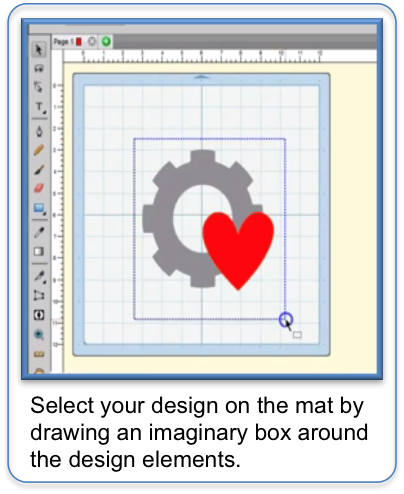
The following shows how to create your own custom sized mat in SCAL to ensure that when you bring your designs to the SNC the design fits within the available space and does not create an error leading to rework of your design.

Step 1:

Step 2:
Step 3:
Step 4:

Step 5:
Step 6:
Step 7:

Step 8:

Step 9:


**  Watch Now **
Use this link to open up a new window to view the video on our Youtube channel ScanNCut JAM Sessions.

A printable version of this guide (plus more useful PDF's, projects and files) can be found in our Facebook group as well as fantastic warm and friendly help on using your ScanNCut, Canvas or SCAL.
Come and join the fun in our group
We would love to have you join us.

Sunday, April 10, 2016

CANVAS: How to Sign In And Import JPEGS & SVG’s

This is a quick guide to show you how to LOG IN to Brothers Scan N Cut Canvas and how to add a design to your project using the IMAGE TRACING and IMPORT.

Step 1:

Step 2:

 Step 1:

Step 2:
Step 3:
Step 4:

Step 1:

Step 2:

Step 3:

Step 4:


**  Watch Now **
Use this link to open up a new window to view the video on our Youtube channel ScanNCut JAM Sessions.


A printable version of this guide (plus more useful PDF's, projects and files) can be found in our Facebook group as well as fantastic warm and friendly help on using your ScanNCut, Canvas or SCAL.
Come and join the fun in our group
We would love to have you join us.

Saturday, April 9, 2016

CANVAS: How to Download your project as an FCM file direct to your USB - Using a MAC

You may not always want to use the wi-fi function of your Scan N Cut (if you have it).

This is a quick guide to show you how to DOWNLOAD your project from Brothers Scan N Cut Canvas directly to your USB as an FCM file, ready to use with the Brother ScanNCut - Using a MAC.

Step 1:
Step 2:
Step 3:
Step 4:

A printable version of this guide (plus more useful PDF's, projects and files) can be found in our Facebook group as well as fantastic warm and friendly help on using your ScanNCut, Canvas or SCAL.
Come and join the fun in our group
We would love to have you join us.

CANVAS: How to Download your project as an FCM file direct to your USB - Using a windows PC

You may not always want to use the wi-fi function of your Scan N Cut (if you have it).

This is a quick guide to show you how to DOWNLOAD your project from Brothers Scan N Cut Canvas directly to your USB as an FCM file, ready to use with the Brother ScanNCut - Using a Windows PC

Step 1:
Step 2:
 
Step 3:
Step 4:
Step 5:
Step 6:

**  Watch Now **
Use this link to open up a new window to view the video on our Youtube channel ScanNCut JAM Sessions.


A printable version of this guide (plus more useful PDF's, projects and files) can be found in our Facebook group as well as fantastic warm and friendly help on using your ScanNCut, Canvas or SCAL.
Come and join the fun in our group
We would love to have you join us.

SCAL4 Regular: How to EXPORT a design as an FCM File (MAC)

It is a common mistake with new users of SCAL to use the 'Save As' option when trying to save the designs from SCAL as a cut file. Thats because the term we use in SCAL to do this is EXPORT.

This is a quick guide to show you how to EXPORT your design from SCAL 4 Regular to your USB as an FCM file, ready to use with the Brother ScanNCut - Using a MAC.

Step 1:


Step 2:

Step 3:
Step 4:
Step 5:


A printable version of this guide (plus more useful PDF's, projects and files) can be found in our Facebook group as well as fantastic warm and friendly help on using your ScanNCut, Canvas or SCAL.
Come and join the fun in our group
We would love to have you join us.

Sunday, April 3, 2016

SCAL4 Regular: How to EXPORT a design as an FCM File (Windows PC)

It is a common mistake with new users of SCAL to use the 'Save As' option when trying to save the designs from SCAL as a cut file. Thats because the term we use in SCAL to do this is EXPORT.

This is a quick guide to show you how to EXPORT your design from SCAL 4 Regular to your USB as an FCM file, ready to use with the Brother ScanNCut - Using a Windows PC.

Step 1:


Step 2:
Step 3: 
Step 4: 
Step 5:
Step 6:

**  Watch Now **
Use this link to open up a new window to view the video on our Youtube channel ScanNCut JAM Sessions.


A printable version of this guide (plus more useful PDF's, projects and files) can be found in our Facebook group as well as fantastic warm and friendly help on using your ScanNCut, Canvas or SCAL.
Come and join the fun in our group
We would love to have you join us.

Saturday, April 2, 2016

New Written Tutorials from ScanNCut, Canvas and SCAL help

**New **
For the ScanNCut, Canvas and SCAL help blog

Over on ScanNCut, Canvas and SCAL help on Facebook, we love to help you all as much as we possibly can.

We appreciate that with almost 7,000 members we need to offer help in as many ways as we can.  We know our members like different things and learn in different ways, thats why we are now going to offer written tutorials based on the video tutorials you will see on our Youtube channel ScanNCut JAM Sessions.  Like the videos these are simple and short meaning them easy to use on their own or alongside the video.

New ones will be added regularly so make sure you join us and follow our blog.